Is ChromeCacheView compatible with all versions of Chrome? Many users wonder about the compatibility of ChromeCacheView with different Chrome releases. ChromeCacheView is a lightweight tool designed to read and display cached files from Google Chrome, providing detailed insights into web activity. Its functionality depends on the cache structure used by Chrome, which has evolved across versions. Therefore, understanding how ChromeCacheView interacts with various Chrome versions is essential for users who rely on it for browser analysis and troubleshooting.
While ChromeCacheView works seamlessly with most modern Chrome versions, certain older or beta versions may have cache formats that are not fully supported. Users should always check updates to ChromeCacheView to ensure full compatibility and take advantage of new features. This ensures that ChromeCacheView continues to offer accurate cache reading, regardless of Chrome version, making it a reliable utility for both casual and professional users.
Overview of ChromeCacheView
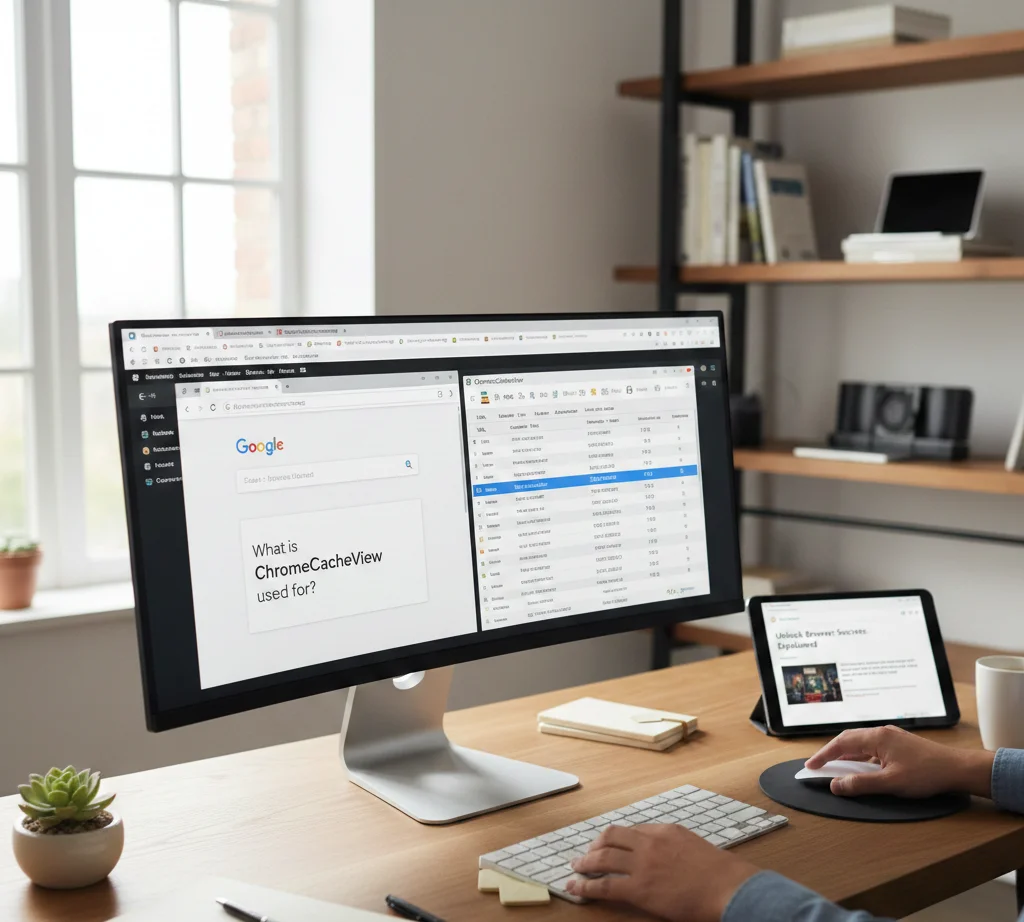
ChromeCacheView is a lightweight and user-friendly utility designed to analyze and extract cached data from the Google Chrome browser. It provides a detailed view of all files stored in the Chrome cache, allowing users to access and manage content such as images, videos, scripts, and web pages. By offering a simple interface, it eliminates the need to manually search through hidden cache folders, saving time for both casual users and IT professionals. Its functionality is particularly useful for retrieving lost data or investigating web activity.
Key Features and Capabilities
ChromeCacheView comes with a robust set of features that make cache management straightforward. It automatically scans the Chrome cache folder and displays all cached files with essential details like URL, file type, size, and last accessed date. Users can sort, filter, and search through the cached items efficiently. Additionally, the tool allows the export of cache information to multiple formats such as CSV, HTML, or XML for reporting or backup purposes, making it valuable for analysis and auditing tasks.
User Interface and Navigation
The software emphasizes simplicity without compromising functionality. The interface presents cached files in a tabular format with clear headings for attributes like URL, Content Type, File Size, and Accessed Time. Users can select multiple entries simultaneously to copy, save, or delete files as needed. Its intuitive design ensures that even users with minimal technical expertise can navigate and utilize the tool effectively. This organized presentation enhances productivity and reduces errors during data retrieval.
Practical Applications
ChromeCacheView serves multiple purposes for different types of users. For everyday users, it helps in recovering accidentally lost media or documents accessed via Chrome. IT professionals and digital investigators can use it to analyze browsing history, inspect website resources, or monitor web activity. Web developers can also leverage the tool to optimize cache usage on websites by studying stored assets. Its versatility makes it an indispensable utility in digital forensics, web analysis, and personal data management.
Compatibility and System Requirements
ChromeCacheView is compatible with all major versions of the Windows operating system and works seamlessly with the latest versions of Google Chrome. It requires minimal system resources, making it suitable for both older and modern machines. The tool does not require installation, functioning as a portable application that can be run directly from a USB drive. This portability enhances flexibility, allowing users to analyze cache data across different devices without leaving traces on host systems.
Supported Chrome Versions
Supported Chrome versions refer to the specific releases of the Google Chrome browser that are compatible with a particular software, extension, or web application. Ensuring compatibility with supported versions is crucial because different Chrome releases may have varying features, APIs, or security protocols. Developers and users alike benefit from knowing which versions are officially supported, as this guarantees stability, performance, and security.
Importance of Version Compatibility
Version compatibility ensures that the software interacts seamlessly with the browser. Newer Chrome versions may introduce updated JavaScript engines, enhanced security measures, or changes to rendering behavior. If a tool or application only supports older versions, running it on an unsupported version could lead to unexpected errors, reduced functionality, or security vulnerabilities. Organizations often rely on supported versions to maintain consistency across multiple devices.
Minimum and Maximum Supported Versions
Most software lists both a minimum and maximum supported Chrome version. The minimum version defines the oldest release that still functions properly, ensuring essential features are present. The maximum version indicates the most recent Chrome release that has been tested for compatibility. Software updates may expand the maximum supported version over time, but older releases are gradually phased out as developers optimize for modern browser capabilities.
Testing and Validation Across Versions
Supported Chrome versions undergo rigorous testing to confirm full functionality. Developers simulate real-world scenarios to ensure all features work correctly, including rendering, interaction, and network requests. Automated testing frameworks often include multiple Chrome versions to catch compatibility issues early. This process helps prevent bugs, enhances user experience, and guarantees that the software remains reliable across all supported releases.
Staying Updated and Managing Versions
Users and organizations should regularly monitor supported Chrome versions to maintain optimal performance. Updating Chrome ensures access to the latest security patches and features, while also keeping the software compatible with essential applications. For enterprise environments, version management tools can enforce specific supported versions across devices, reducing risk and improving consistency. Staying informed about version support also allows users to plan upgrades or troubleshoot issues effectively.
Windows OS Compatibility
Understanding Windows OS Compatibility
Windows OS compatibility refers to the ability of software, hardware, or applications to function correctly across different versions of Microsoft Windows. With multiple iterations of Windows—ranging from Windows 7, 8, 10, to Windows 11—developers must ensure their programs work seamlessly without errors, crashes, or performance issues. Compatibility ensures that users can enjoy a stable experience regardless of the system they operate, minimizing conflicts between software and operating system environments.
Backward Compatibility Considerations
Backward compatibility allows applications designed for older versions of Windows to operate on newer versions without requiring modifications. This is crucial for businesses and individual users who rely on legacy software. Microsoft implements features such as compatibility mode, virtual desktops, and runtime libraries to help older applications function properly. Understanding these mechanisms helps developers maintain support for a wider user base while ensuring system stability and reducing potential security risks.
Hardware and Driver Requirements
Windows OS compatibility is not limited to software alone; hardware plays an equally important role. Each Windows version has specific system requirements, including CPU architecture, memory, storage, and graphics capabilities. Drivers—software that connects hardware to the OS—must also be compatible. For example, a graphics card driver designed for Windows 10 may not work optimally on Windows 11 without updates. Ensuring hardware compatibility avoids system crashes and maximizes performance.
Security and Updates Impact
Software compatibility is deeply influenced by Windows security updates and patches. Certain updates may enhance compatibility with new applications, while others can break functionality for outdated software. Developers and IT professionals must regularly test their applications against the latest updates to ensure uninterrupted performance. Additionally, using features like Windows Defender Application Guard and SmartScreen can affect how older programs run, emphasizing the need for proactive compatibility testing.
Tools and Strategies for Compatibility Testing
To achieve full Windows OS compatibility, developers and users employ a variety of tools and strategies. Microsoft provides resources such as the Windows Compatibility Center, Application Compatibility Toolkit, and virtualization environments for testing. Strategies include running software in virtual machines, using compatibility mode settings, and monitoring application behavior across multiple OS versions. These proactive measures reduce errors, enhance user experience, and ensure that applications remain functional and secure across evolving Windows platforms.
32-bit vs 64-bit Chrome
Google Chrome is available in both 32-bit and 64-bit versions, and understanding the difference is crucial for optimizing browser performance. The distinction lies in how the browser handles memory addresses and data processing. A 32-bit version can access a maximum of 4GB of RAM, whereas a 64-bit version can utilize significantly more memory, allowing for smoother performance, especially when multiple tabs or extensions are active. Choosing the right version can affect stability, security, and speed.
Performance Differences
One of the most significant differences between 32-bit and 64-bit Chrome is speed and efficiency. The 64-bit version can process larger chunks of data per clock cycle, leading to faster rendering of complex web pages, smoother video playback, and better handling of high-resolution graphics. In contrast, 32-bit Chrome may experience slower performance when multiple tabs are open or when using memory-intensive applications like web-based editing tools or online games.
Memory Usage and Stability
The amount of memory a browser can access is directly related to system stability. 64-bit Chrome can use more than 4GB of RAM, which is especially beneficial for users who regularly run many tabs or use multiple extensions simultaneously. This reduces the risk of crashes, freezes, or slowdowns. Meanwhile, 32-bit Chrome may face memory limitations, which can lead to browser crashes or errors when handling heavy workloads.
Security Advantages
64-bit Chrome also offers enhanced security features compared to the 32-bit version. It includes stronger sandboxing techniques, better protection against exploits, and compatibility with modern security protocols. These improvements make it harder for malicious code to compromise the browser or the operating system. Users on modern systems are generally recommended to use 64-bit Chrome to benefit from the latest security updates.
Compatibility Considerations
While 64-bit Chrome is superior in performance and security, compatibility with older systems may require the use of the 32-bit version. Some older operating systems or legacy plugins may not work with 64-bit Chrome. It is important to verify system specifications before installation. Modern computers, however, almost always support 64-bit applications, making it the preferred choice for most users.
Effect of Chrome Updates
Enhanced Security and Vulnerability Fixes
Chrome updates are primarily designed to improve browser security. Each update addresses known vulnerabilities, protecting users from malware, phishing attacks, and other cyber threats. For organizations and individual users, these security enhancements reduce the risk of sensitive data breaches. Regular updates ensure that security patches are applied promptly, safeguarding online transactions, stored passwords, and personal information. Failure to update Chrome can leave systems exposed to exploits that have already been mitigated in newer versions.
Performance Improvements and Speed Optimization
With every Chrome update, Google focuses on enhancing browser speed and efficiency. Updates optimize memory usage, page loading times, and resource management. Users may notice smoother browsing experiences, faster rendering of multimedia content, and reduced lag when multiple tabs are open. These improvements are particularly significant for users running high-demand web applications or extensions, as updated Chrome versions can handle complex tasks more efficiently, ensuring overall system stability and responsiveness.
Compatibility with Modern Web Standards
Chrome updates frequently include support for new web technologies, protocols, and standards such as HTML5, CSS3, and JavaScript APIs. This ensures that websites and web applications display and function correctly, preventing rendering errors or broken features. Developers benefit from these updates because they can leverage modern coding techniques without worrying about backward compatibility issues. For users, this translates into a seamless browsing experience across various platforms, devices, and web-based tools.
Introduction of New Features and Functionalities
Every Chrome update may introduce new features that enhance user experience. Examples include improved tab management, advanced privacy controls, integrated password managers, and developer tools. These new functionalities allow users to work more efficiently, protect their data better, and customize their browsing experience. Staying up to date ensures that users can access the latest tools and take full advantage of Chrome’s evolving capabilities, rather than being limited to outdated features.
Impact on Extensions and Third-Party Integrations
Chrome updates can affect installed extensions and third-party integrations. While updates improve security and performance, some older extensions may become incompatible with the latest version, requiring updates or replacements. Developers must continuously maintain their extensions to align with Chrome’s evolving architecture. Users should regularly check for extension updates to prevent disruptions in functionality. This dynamic environment ensures that extensions remain secure, efficient, and fully compatible with Chrome’s latest ecosystem.
Conclusion
ChromeCacheView is designed to work seamlessly with most modern versions of Google Chrome, providing users with an efficient way to access and analyze cached files. However, compatibility may vary with extremely outdated or newly released Chrome versions due to evolving browser architecture. Overall, for the majority of users, ChromeCacheView offers reliable performance, making it a practical tool for inspecting cache data across commonly used Chrome releases, ensuring convenience and efficiency.